Matter Bridge
OpenCCU-Loom can expose your Homematic devices to Matter ecosystems — Apple Home, Google Home, and Amazon Alexa — so you can control them from those apps. This page explains how to turn the bridge on and pair it.
Who this page is for
End users who want their Homematic devices to appear in Apple Home, Google Home, or Alexa. No Go knowledge required; some familiarity with your smart-home app helps.
Maturity: alpha
The Matter bridge is the youngest and least proven part of OpenCCU-Loom — the daemon as a whole is beta, this bridge is alpha. It works, and it is tested against Apple Home, Google Home and chip-tool, but expect rough edges: pairing that needs a second attempt, devices that map to a Matter type differently than you would guess, and behaviour that varies per ecosystem. It is off by default; turning it on is an explicit test decision. Do not build automations on it that something depends on, and read Controller ecosystem caveats and Limitations below before you start.
What the Matter bridge does
When enabled, OpenCCU-Loom advertises itself on your network as a single Matter bridge. Each selected Homematic device shows up inside that bridge as a Matter accessory of the appropriate type (a light, a lock, a sensor, and so on). You then pair the bridge once with your ecosystem, and all its accessories appear together.
The bridge is off by default. You must explicitly enable it.
Enabling the bridge
Set north.matter.enabled to true in your daemon configuration:
north:
  matter:
    enabled: true
    # Optional. The bridge name your ecosystem will show. Defaults to "openccu-loom".
    node_label: "Home Bridge"
    # Optional. UDP listen address. Defaults to ":5540".
    listen: ":5540"
    commissioning:
      # Required for pairing — the Matter setup passcode (00000001..99999998).
      # Leave 0 (the default) and pairing is disabled.
      passcode: 20202021
The bridge listens on UDP port 5540 by default. The pairing passcode under north.matter.commissioning.passcode is required: if it is left at 0, the bridge will not accept commissioners and the pairing codes are unavailable.
For the full set of keys (vendor/product IDs, discriminator, attestation, CASE), see Configuration. Restart the daemon after changing the config — see Getting started.
Test vendor identity — your ecosystem may flag it as uncertified
By default the bridge advertises the test vendor ID 0xFFF1 and product ID 0x8000. These are development identifiers, not a certified production identity. Apple Home, Google Home, and Alexa may warn that the bridge is an uncertified / test accessory during pairing. This is expected for a self-hosted bridge; you can usually accept and continue. Setting real, vendor-assigned IDs and attestation material is an expert/production step covered in Configuration.
Finding your pairing codes
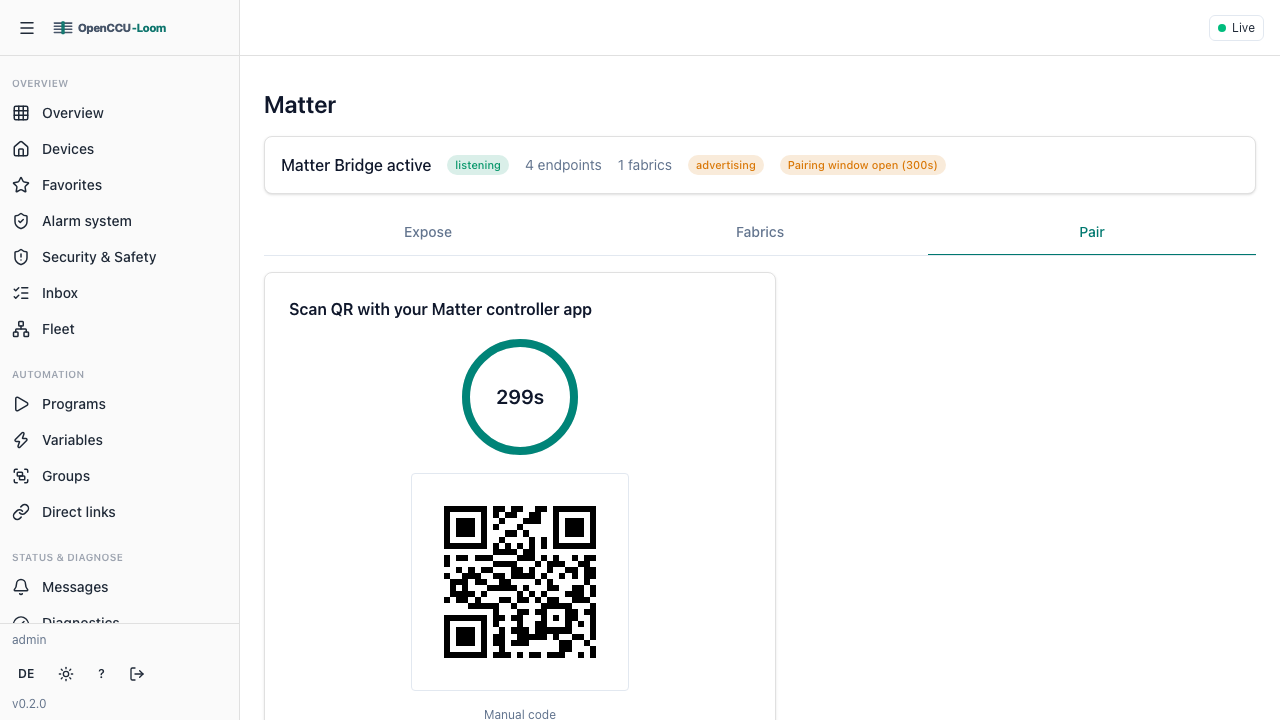
To pair, your phone app needs either the setup QR code or the 11-digit manual pairing code. OpenCCU-Loom generates both from your configured passcode and discriminator.
- In the web UI: open the Matter view, which shows the QR code and the manual code ready to scan or type.
- Via the API:
GET /api/v1/matter/setup-payloadreturns the QR payload and the manual code. (It returns "not configured" if no passcode is set.)
Tip
Keep the passcode private — anyone with the code can add your bridge to their own home.
Pairing step by step
The flow is the same idea everywhere: add an accessory, then scan the QR or enter the manual code.
- Open the Home app and tap + → Add Accessory.
- Scan the QR code from the OpenCCU-Loom Matter view (or tap "More options" to enter the manual code).
- If prompted that the accessory is uncertified, choose Add Anyway.
- Wait for the bridge and its devices to be set up, then assign rooms and names.
- Open the Google Home app and tap + → Set up device → New device.
- Choose Matter-enabled device and scan the QR code, or enter the manual code.
- Acknowledge any uncertified-device prompt to continue.
- Finish setup and assign rooms.
- Open the Alexa app → Devices → + → Add Device.
- Pick Other / Matter and choose to scan the QR code or enter the manual code.
- Acknowledge any uncertified-device prompt.
- Let Alexa discover the bridged accessories.
After pairing the bridge once, the individual Homematic devices appear in the app automatically. Adding the bridge to additional ecosystems uses a fresh commissioning window — open one from the Matter view (the commissioning window action) and pair again with the new code.
Supported device types
OpenCCU-Loom maps Homematic devices to these Matter device types. Anything it cannot map is simply not exposed.
| Matter device type | Typical Homematic source |
|---|---|
| On/Off Light | Switch-actuator used as a light |
| Dimmable Light | Dimmer |
| Color Temperature Light | Tunable-white light |
| Extended Color Light | Color (RGB) light |
| On/Off Plug-in Unit | Switch / plug actuator |
| Window Covering | Blind / shutter / cover |
| Thermostat | Heating thermostat |
| Door Lock | Door lock / keymatic |
| Contact Sensor | Door/window contact (leak-class sensors will also surface here once classified) |
| Occupancy Sensor | Motion / presence sensor |
| Temperature Sensor | Temperature measurement |
| Humidity Sensor | Humidity measurement |
| Light Sensor | Illuminance measurement |
| Pressure Sensor | Air-pressure measurement |
| Generic Switch | Button / momentary switch |
| Smoke / CO Alarm | Smoke detector |
| Air Quality Sensor | CO₂ / particulate sensor |
Power and energy measurement
Measuring devices — a switch-measuring plug such as the HmIP-PSM, for example — also surface their electrical readings to Matter. Instantaneous power, voltage, current and frequency appear via the Electrical Power Measurement cluster and cumulative consumption via the Electrical Energy Measurement cluster. Both sit on a separate Electrical Sensor endpoint alongside the plug's switch endpoint, which is where the Matter Device Library specifies them; ecosystem apps that understand these clusters (for example the energy screens in newer Apple Home and Google Home builds) show the live and accumulated values there.
Metering plugs re-learn once after updating
These clusters previously sat on the plug's switch endpoint, which the Device Library does not specify for that device type — Alexa in particular recognises a bridged endpoint only by the clusters its device type names. After updating, a paired metering plug gains a second accessory carrying the readings. This is a one-time step.
Buttons / momentary switches
Momentary controls — wall buttons, remotes — map to the Generic Switch device type, with one endpoint per physical button. Each button emits Matter switch events for a single press, a long press, and multi-press, so your ecosystem can distinguish short-tap, hold, and double-tap automations.
Button accessories re-learn once after updating
The move to one endpoint per physical button renumbered how buttons are exposed. After updating, a paired button device may appear with new endpoints; re-create any automations that targeted the old ones. This is a one-time step.
Battery level
Battery-powered devices report their level through the Power Source cluster, which rides on the device's own accessory rather than appearing as a separate one. A device has one battery, so exactly one of its endpoints carries the cluster.
Choosing which devices are exposed
You do not have to expose everything. The Matter view lets you pick which devices the bridge advertises, so your Home app stays uncluttered. Changes take effect on the bridge without re-pairing it.
By default OpenCCU-Loom exposes one Matter endpoint per device. The expert flag north.matter.expose_secondary_channels opts a device's secondary actor channels out into their own extra endpoints — useful for multi-channel actuators (for example a dual switch) where you want each channel as a separate Matter accessory. Leave it off unless you specifically need the fan-out; see ADR 0049.
Controller ecosystem caveats
Matter controllers do not implement the specification uniformly — each ecosystem supports its own subset of device types, ports, and fleet sizes. The field observations below were collected by the home-assistant-matter-hub project; some of them shape how OpenCCU-Loom maps devices.
- Amazon Alexa commissions bridges only on UDP port 5540. A bridge bound to any other port pairs fine with Apple Home and Google Home but silently fails Alexa commissioning. This matters when another Matter service on the same host already occupies port 5540 (for example, Home Assistant's Matter server add-on): commission Alexa while the bridge is listening on 5540 (
north.matter.listen), because pairing on an alternative port will not work with Alexa. - Alexa caps the number of devices per bridge. Alexa cannot pair with a bridge that exposes too many accessories — the practical limit is roughly 80–100 devices. Larger fleets should not be exposed wholesale to an Alexa fabric; trim the selection first (see Choosing which devices are exposed).
- Alexa lags behind current Matter device-type revisions. Newer detector device types — such as the Water Leak Detector introduced in Matter 1.3 — can render an entire bridge unresponsive on Alexa: every accessory on the bridge stops reacting. OpenCCU-Loom therefore maps the leak measurement class to the universally supported Contact Sensor device type (leak/moisture parameters are not classified yet; the mapping is in place so future leak sensors never surface the hazardous detector type).
- The WaterValve device type is unsupported by both Google Home and Amazon Alexa. OpenCCU-Loom exposes the irrigation valve as a plain on/off endpoint instead, which all three ecosystems handle — see ADR 0049.
Limitations
- Only the device types in the table above are exposed; unmapped devices stay Homematic-only.
- Some Homematic features have no direct Matter equivalent and are not carried over.
- A device must be mappable to a supported Matter type before it can be exposed.
- The default test vendor identity means ecosystems may treat the bridge as uncertified (see the warning above).
For the technical contract behind the Matter mapping, see docs/matter-parity-contract.md; the per-ecosystem findings behind the caveats above are collected in Matter Ecosystem Observations.
Where to go next
- Getting started — install and first run.
- Core concepts — devices, channels, and data points.
- Configuration — full Matter and daemon settings.